Building and Running Firmware
This guide provides step-by-step instructions on how to configure, build, and flash the AMDS firmware onto different hardware targets (e.g., AMDS and 2S).
Prerequisites
IDE: STM32CubeIDE (or your preferred C/C++ IDE configured for ARM Cortex-M development).
Hardware: ST-Link V2/V3 or equivalent hardware debugger/programmer.
Target Board: Either an AMDS board or AMDS-compatible board.
Multi-Target Firmware Project (Custom Build Configurations)
The firmware is designed to operate on multiple target hardware platforms using a single, unified codebase.
Target Definitions: The firmware uses
TARGET_AMDSandTARGET_2Spreprocessor macros to conditionally compile board-specific configurations.Dynamic Peripheral Assignment: Depending on the selected target, the system correctly configures the corresponding hardware peripherals. For example,
TARGET_AMDSutilizesUART4andUART5for the Daisy Chain RX lines, whileTARGET_2Srelies onUSART6andUSART1.Custom Run Configurations: You can program either an AMDS or other devices without creating separate project branches, simply by toggling the target macro in your build/run configurations.
Step 1: Open the Project
Launch STM32CubeIDE.
Go to File > Open Projects from File System…
Select the directory containing the firmware source code (
AMDS\Mainboard\Firmware\mainboard\) and click Finish.
Step 2: Set the Build Configuration (Target Macro)
The firmware uses preprocessor macros to conditionally compile the correct peripheral assignments and active sensor masks for your specific board. Two targets are currently supported:
AMDS: This is the standard AMDS hardware as documented on this website.2S: This is a new target that has only two sensor cards on hardware that is not yet publicly released.
Tip
Nearly all users are on AMDS hardware. When in doubt, select the AMDS option.
Right-click on
mainboardand go to Build Configuration > Set Active > AMDS or 2S
Note: Alternatively, simply select the appropriate active configuration the Build “hammer” dropdown menu.
Step 3: Build the Project
Clean the project to ensure no artifact mix-ups from previous board builds: Go to Project > Clean… and select your project.
Build the project: Click the Build (hammer) icon or go to Project > Build Project.
Check the console output to ensure there are no compilation errors and that the build finishes successfully.
Important
If you did not set the build configuration in the previous steps you will see many compilation errors that look like this:
#error “Please define a target board (TARGET_AMDS or TARGET_2S)!”
Step 4: Configure the Run/Debug Settings
Connect your ST-Link to your PC and the target board’s SWD (Serial Wire Debug) header.
Power on the target board.
In STM32CubeIDE, go to Run > Debug Configurations…
Double-click STM32 Cortex-M C/C++ Application to create a new configuration.
In the Main tab, ensure the correct
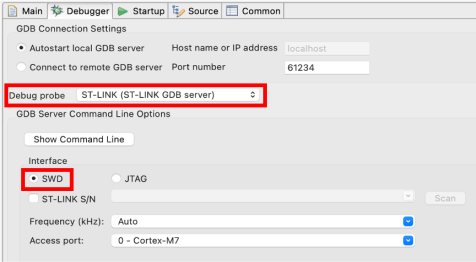
.elffile is selected inC/C++ Applicationas eitherAMDS/mainboard.elfor2S/mainboard.elf.In the Debugger tab, ensure the Debug probe is set to ST-LINK and the interface is set to SWD.
Click Apply.
Step 5: Flash and Verify
Click Debug (or Run) from the configuration window to flash the firmware.
The IDE will connect to the board, erase the necessary flash sectors, and write the new firmware.
Once flashing is complete, if you are in Debug mode, click the Resume (play) button to start execution.
Verification: Observe the board’s behavior. Depending on your configuration, verify that the active sensor mask operates correctly (AMDS enables all 8 channels
0xFF, 2S enables a subset0x11) and that UART/DMA streams begin processing as expected.
Tip
For the AMDS board, a good indicator that things are running smoothly is the 4 LEDS near the MCU blinking in order.
Switching Between Targets
Because the project shares a single codebase, programming a different target (AMDS vs 2S) is simple:
Disconnect the current board and connect the new one.
Return to Step 2 and swap the target macro.
Rebuild (Step 3) and Flash (Step 5).